Inspections
Inspections allow you to verify vehicle safety and compliance with company standards and regulations. As a driver, you conduct inspections using checklists assigned to your vehicle. This ensures consistent, documented verification of vehicle condition before and after trips.
💡 Who is this for? This guide is primarily for drivers and field personnel who conduct inspections. Administrators who create checklists should see Checklists.
- Overview
- Before You Begin
- Start an Inspection
- Conducting the Inspection
- Complete the Inspection
- Out of Service Vehicles
- View Inspection History
- Inspection Statuses
- Generate Reports
- AI Photo Analysis
- Security & Permissions
Overview
ToolWorks inspections support Digital Vehicle Inspection Reports (DVIR) for pre-trip and post-trip compliance. Each inspection:
- Follows a checklist assigned to your vehicle
- Captures GPS location automatically
- Documents the condition of each inspection item
- Requires photos and comments for failed items when configured
- Captures your signature as certification
- Notifies fleet staff of critical failures
Inspections can be conducted from the web application or mobile app — the workflow is the same on both platforms.
Before You Begin
To conduct an inspection, ensure:
- You have a vehicle assigned — Your administrator must assign you as the operator or assign the vehicle to you.
- The vehicle has checklists assigned — At least one checklist must be assigned to the vehicle (or to all vehicles in your fleet).
- You have the right permissions — You need the Field Inspection or Manage Inspection right.
If you don't see any inspections available, contact your administrator to verify these are configured.
Start an Inspection
There are three ways to start an inspection:
From the Dashboard (Recommended for Drivers)
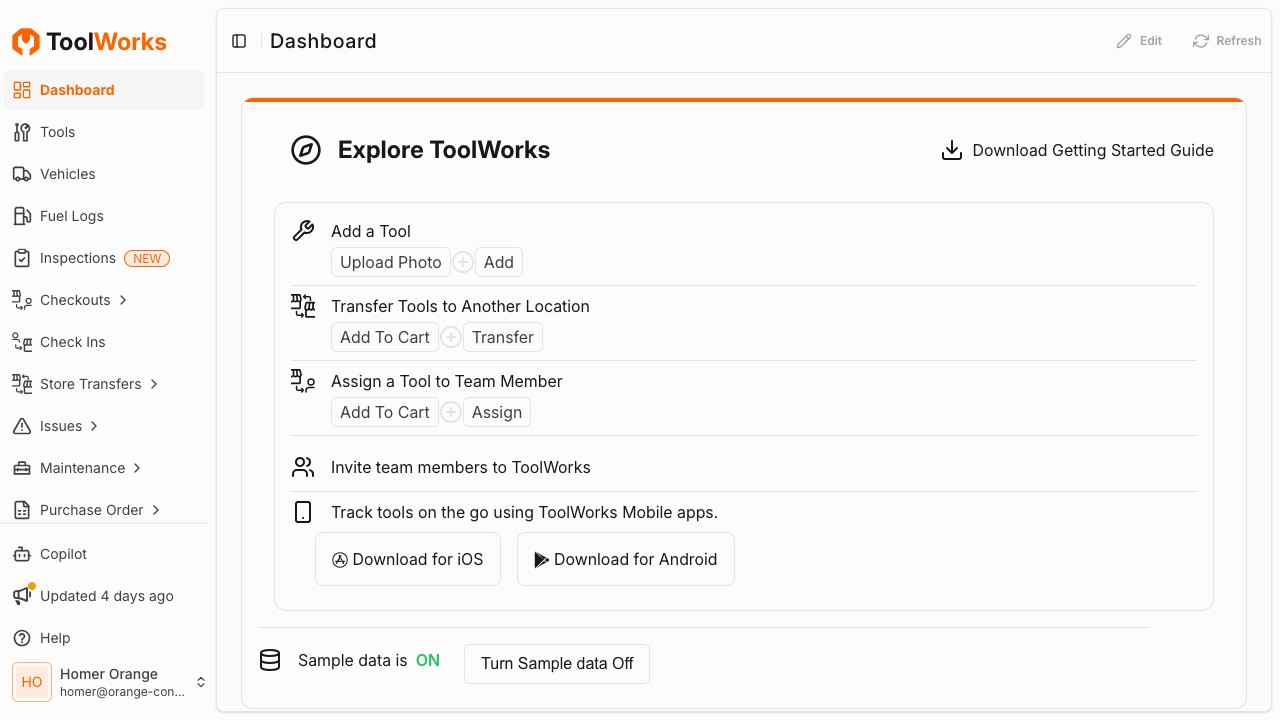
If you have a vehicle assigned, the Dashboard shows your pending inspections.
- Navigate to the Dashboard.
- Find your assigned vehicle card.
- Click the Inspection button, or click ... to choose from multiple assigned checklists.
- The inspection form opens automatically.
From a Vehicle Detail Page
- Navigate to the Vehicles section.
- Find and select the vehicle you want to inspect.
- Click Start Inspection or find the inspection action in the vehicle menu.
- Select the checklist to use (if multiple are assigned).
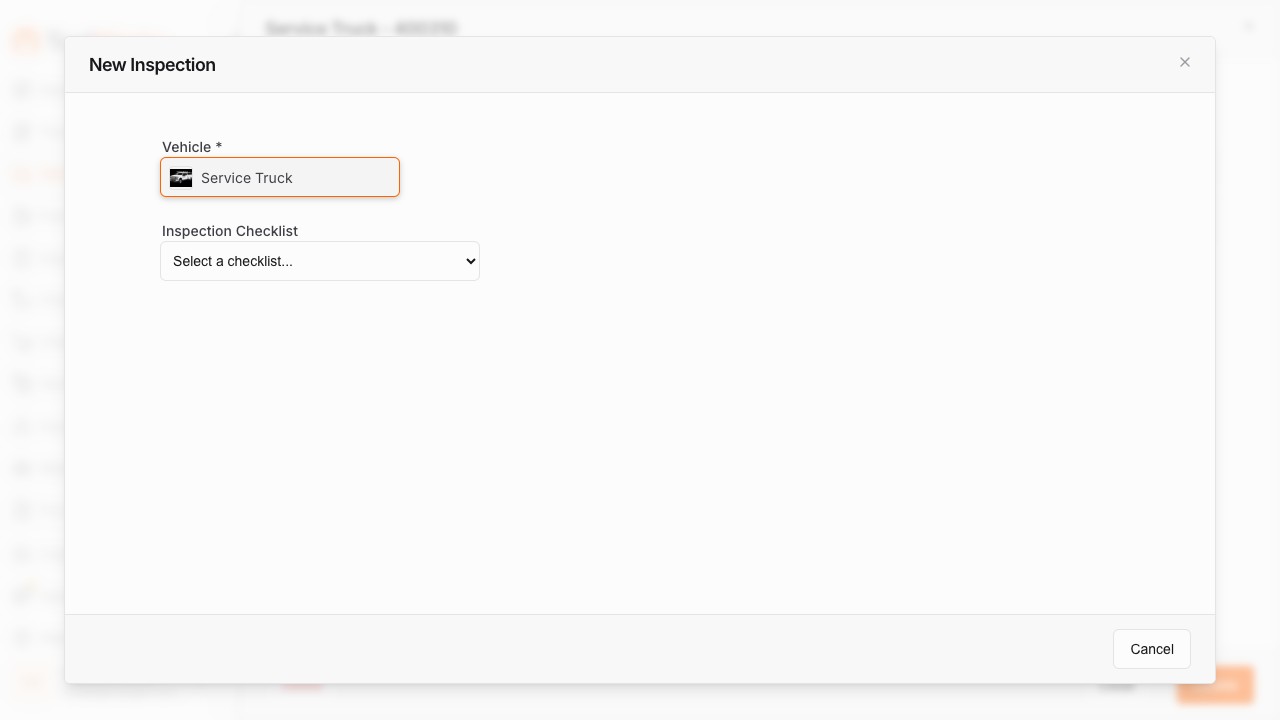
From the Inspections Page
- Navigate to the Inspections section.
- Click + New Inspection.
- Select the Vehicle from the picker.
- Select the Checklist to use.
- Click Start to begin.
Conducting the Inspection
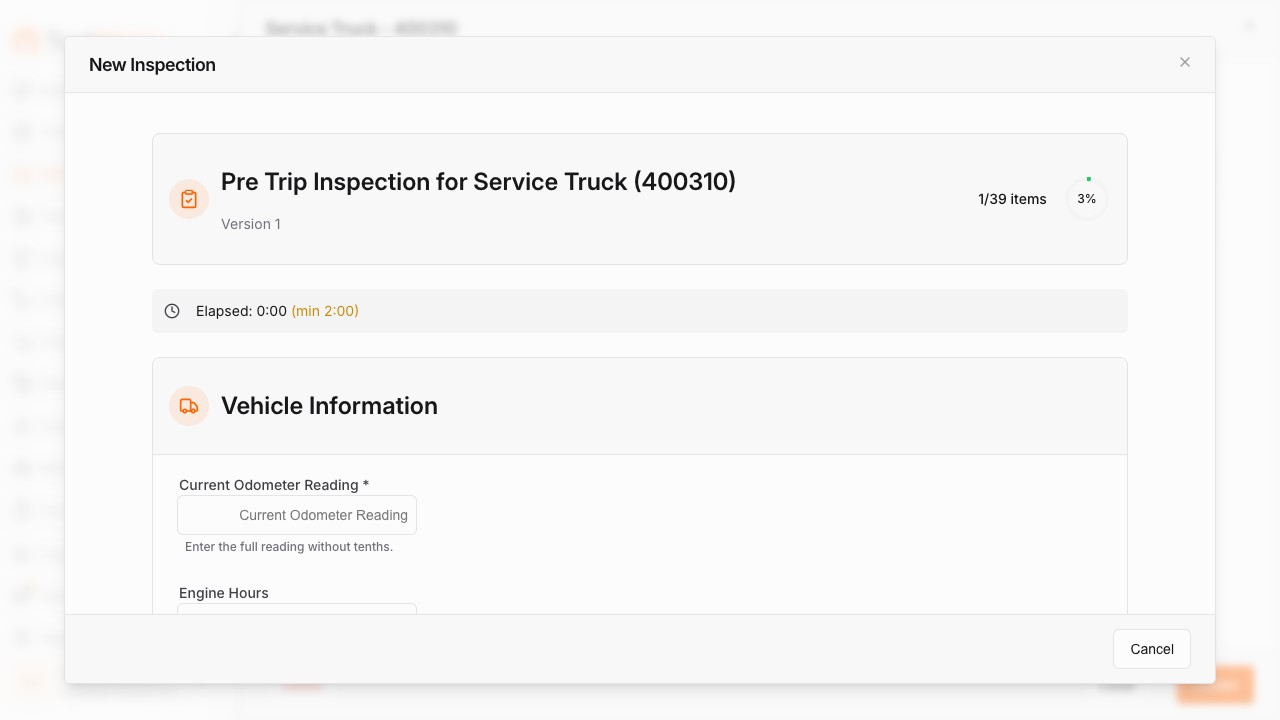
Once you start an inspection, work through each section of the checklist. Your GPS location is captured automatically when the inspection begins.
Vehicle Information
The first section typically captures vehicle data:
- Odometer Reading — Enter the current mileage (required)
- Engine Hours — Enter if applicable to your vehicle
Inspection Zones
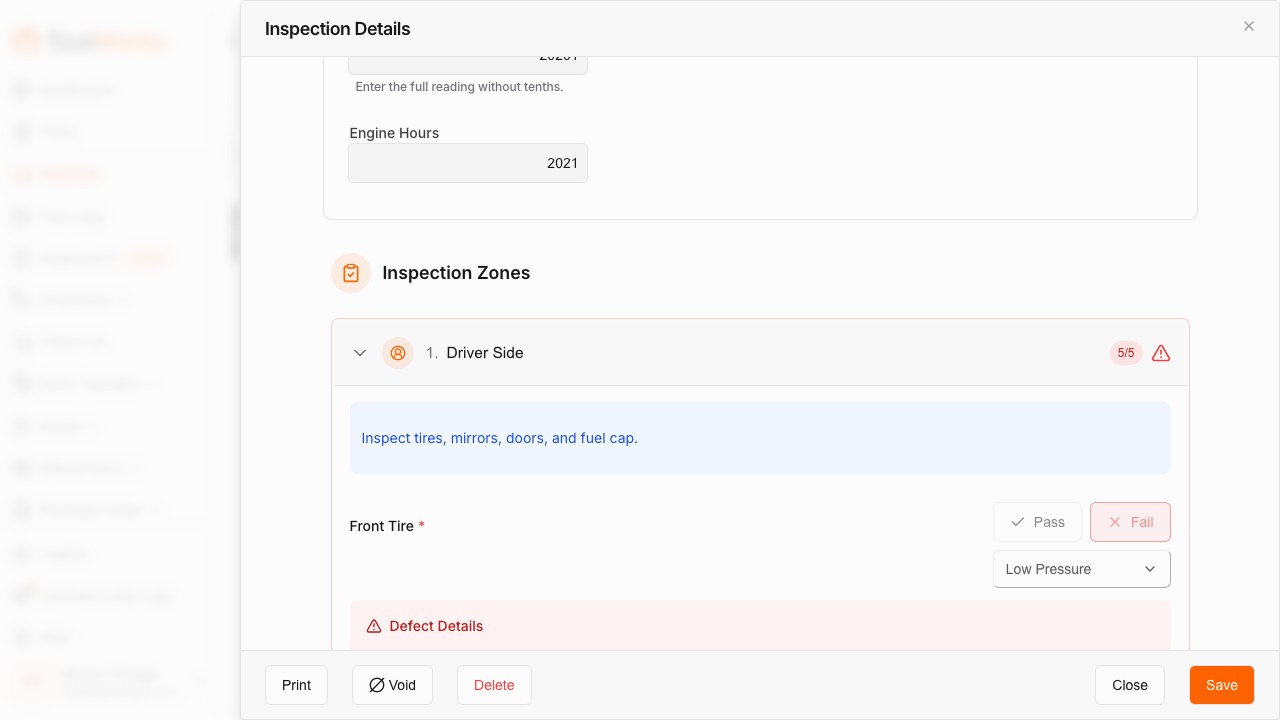
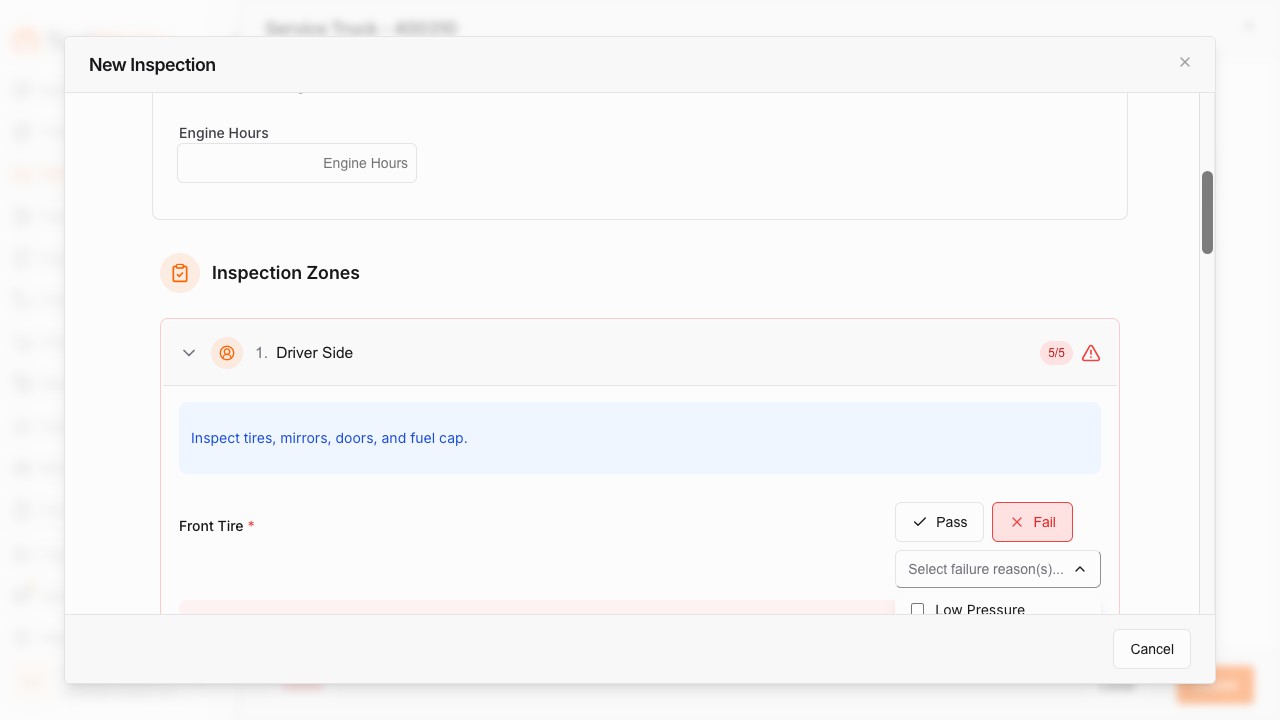
The main section contains inspection zones — areas of the vehicle to check. For each zone:
- Read the instruction at the top of the zone (e.g., "Inspect tires, mirrors, doors, and fuel cap").
- Check each item in the zone.
- For each item, indicate Pass or Fail.
Items default to Pass. Tap an item to mark it as Fail.
Marking Failures
When you mark an item as failed:
-
Select severity (if configured):
- Minor — Issue noted but vehicle can still operate
- Major — Critical safety issue; vehicle should not operate
-
Select failure reason (for detailed pass/fail items):
- Choose from pre-defined reasons like "Low Pressure", "Low Tread", "Sidewall Damage"
-
Take a photo (if required):
- Tap the camera icon to capture the issue
- Multiple photos can be added for documentation
-
Add a comment (if required):
- Enter notes describing the issue
⚠️ Important: Some items require photos and/or comments when failed. You cannot proceed until these are provided.
Asset Verification
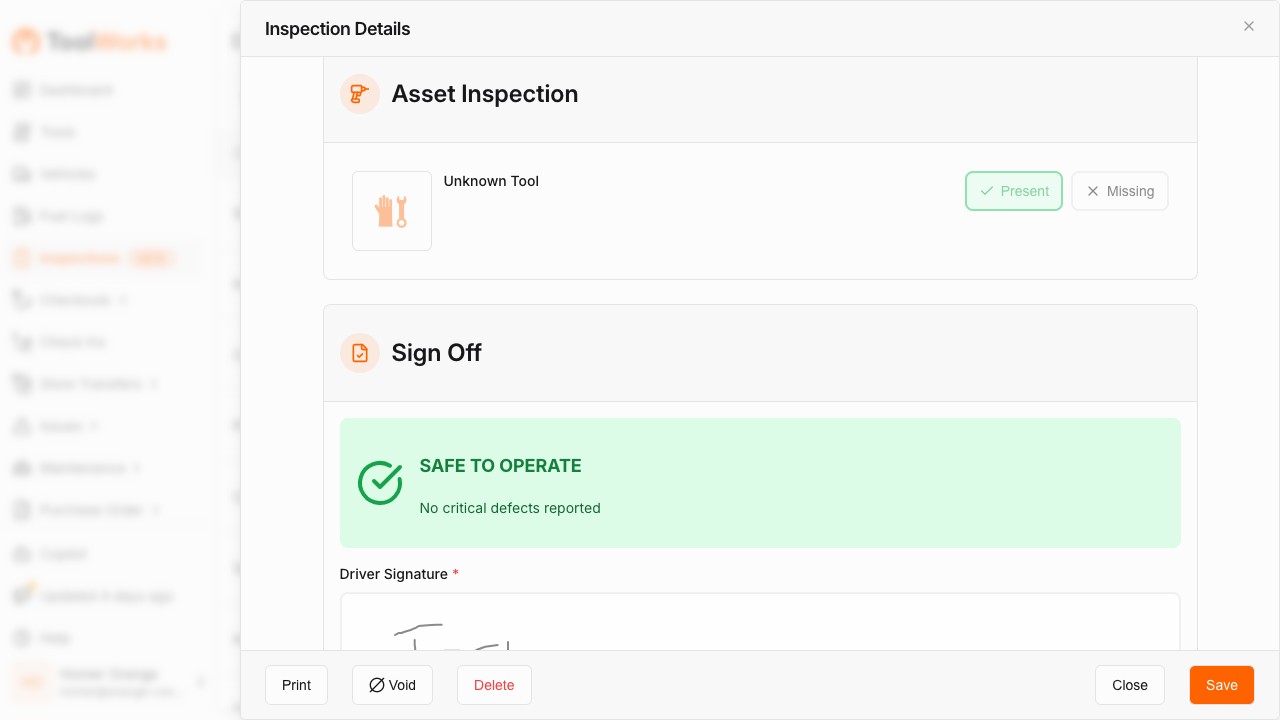
If your checklist includes an Asset Inspection section, verify high-value tools assigned to the vehicle:
- Review each listed tool.
- Mark each as Present or Missing.
- For missing tools, add a required comment explaining the situation.
This helps ensure accountability for tools carried on the vehicle.
Sign Off
The final section captures your certification:
- Review the status summary — See the overall inspection result (Pass, Fail, or Needs Attention).
- Sign your name — Use the signature pad to provide your digital signature.
- Check the declaration — Confirm that the inspection is accurate and complete.
Complete the Inspection
After working through all sections:
- Review any warnings or incomplete items shown.
- Click Complete Inspection to submit.
- The inspection is saved and the overall status is calculated:
- Pass — All items passed
- Fail — One or more items failed
- Needs Attention — Minor issues exist
You'll receive confirmation that the inspection was submitted successfully.
💡 Tip: Inspections have a minimum duration requirement (typically 2 minutes). If you complete too quickly, you may be asked to take more time reviewing items.
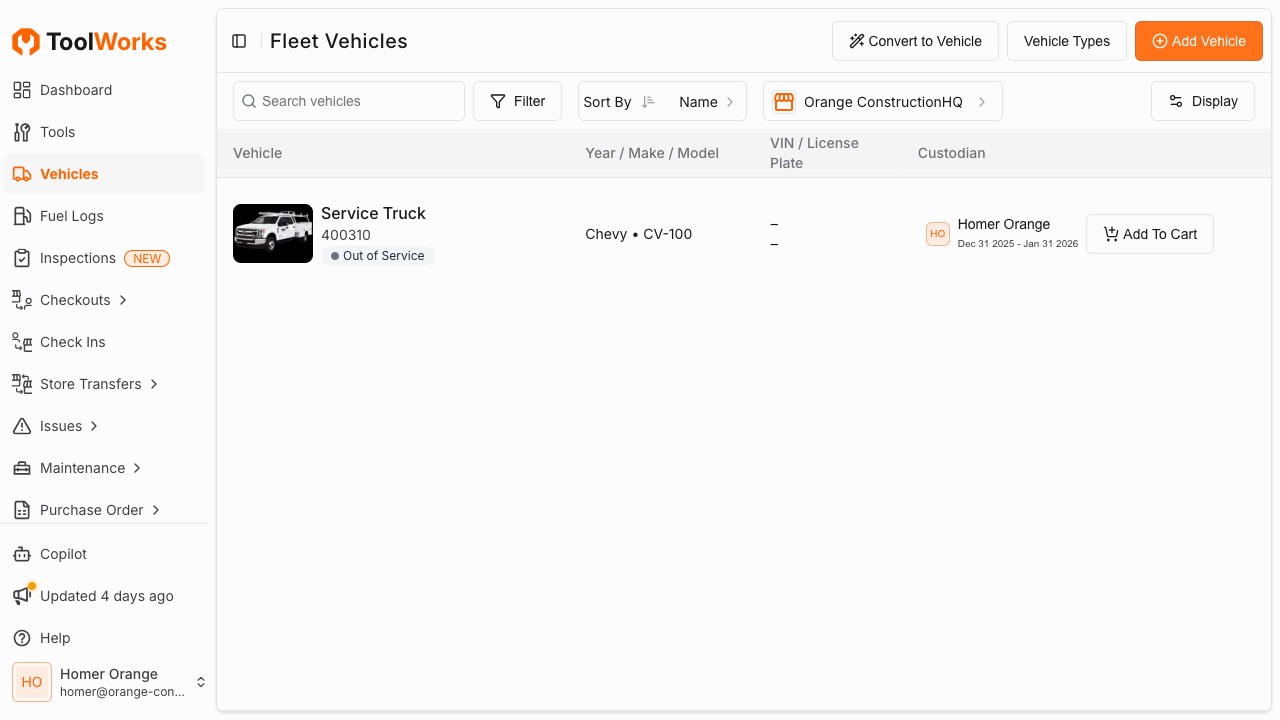
Out of Service Vehicles
When you mark an item with Major severity:
- The vehicle is automatically marked as Out of Service.
- Fleet staff receive an immediate push notification.
- The vehicle cannot be used until the issue is resolved and the Out of Service status is cleared.
This ensures critical safety issues are immediately communicated and addressed.
View Inspection History
To view completed inspections:
- Navigate to the Inspections section.
- Browse the list of inspections, ordered by date.
- Use Search to find specific inspections.
- Use Filters to narrow by:
- Vehicle
- Driver
- Status (Pass/Fail)
- Date range
Inspection Details
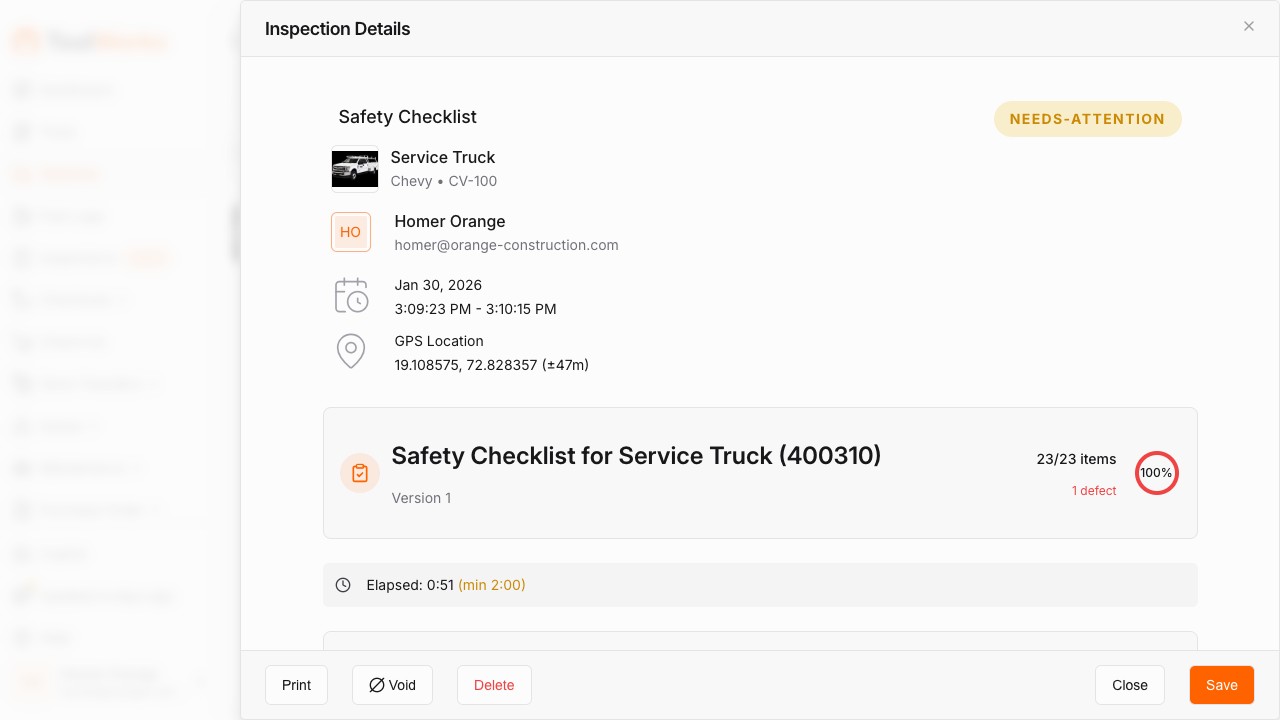
Click any inspection to view full details:
- Header — Vehicle, driver, date/time, location
- Overall Status — Pass, Fail, or Needs Attention
- Items — Each inspection item with its status
- Failures — Detailed view of failed items with reasons, photos, and comments
- Signature — Driver's certification signature
- GPS Location — Where the inspection was conducted
Inspection Statuses
Inspections move through workflow statuses:
| Status | Description |
|---|---|
| Draft | Inspection started but not yet submitted |
| Submitted | Inspection completed and submitted by driver |
| Reviewed | Administrator has reviewed the inspection |
| Voided | Inspection invalidated (with reason noted) |
Administrators can void inspections if they contain errors, adding a reason for the record.
Generate Reports
To generate an inspection report:
- Navigate to the Inspections section.
- Click on the inspection you want to report.
- Click Download Report or Print.
- A PDF is generated containing:
- Vehicle and driver information
- Complete inspection results
- Photos of failed items
- Driver signature
- GPS location and timestamp
Reports can be saved for compliance records or shared with fleet management.
AI Photo Analysis
ToolWorks can analyze inspection photos using AI to suggest pass/fail status:
- When you upload a photo for an inspection item, AI analyzes the image.
- Suggested status (pass/fail) appears based on detected conditions.
- Review the suggestion and accept or override it.
This helps ensure consistent assessments and catches issues you might miss.
💡 AI analysis works best with clear, well-lit photos showing the item being inspected.
Security & Permissions
Conducting inspections requires specific permissions:
| Right | Capability |
|---|---|
| Field Inspection | Conduct inspections in the field (for drivers) |
| Manage Inspection | Full access to view, edit, void, and delete inspections (for administrators) |
Contact your administrator if you need access to conduct or manage inspections.
Troubleshooting
No Checklists Available
If no checklists appear when starting an inspection:
- Verify the vehicle has a checklist assigned (contact your administrator)
- Check that you have the Field Inspection right
Cannot Complete Inspection
If the Complete button is disabled:
- Ensure all required items are addressed
- Check for failed items that require photos or comments
- Verify the signature is completed
GPS Not Captured
If GPS location isn't captured:
- Ensure location permissions are enabled in your browser or app
- Check that you have a GPS signal
- The inspection can still be completed without GPS, but it may be flagged for review
Next Steps
- Learn how administrators create checklists: Checklists
- Manage your fleet vehicles: Vehicle Management
- Report vehicle issues: Maintenance